Der Beitrag How to End Another User’s SAP Session erschien zuerst auf ecosio.
]]>- Use transaction SM04 to list all active sessions including the one locking your document
- Double‑click the relevant user to view all the open transactions they have
- Select the session that is locking the document and click ‘Delete Session’ to end it
- This frees the document so you can continue editing it immediately
We’ve all been in that situation. You want to change a certain SAP document (e.g. a sales order in transaction VA02), but the system is giving you the following message: “Sales document 4711 is currently being processed (by user XYZ)”.
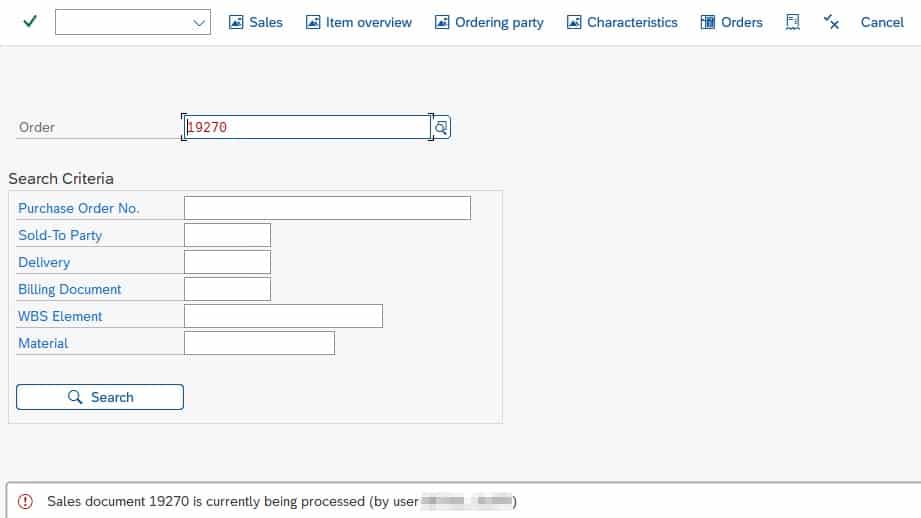
Often the user in question will simply have forgotten to close the transaction. This is an issue as SAP will keep the sales order document locked until they close it.
In order to resolve this issue, the logical next step is to try to get hold of the user (e.g. via email, Slack, Teams, etc.) and ask them to release the lock so that you can edit the sales document. Sometimes, however, the user locking the transaction may be away from their desk or already at home.
But you don’t have time to wait for them to return. You need to fix something in the sales order now – e.g. remove a delivery block. Luckily there is one more trick you can use – manually terminating the SAP session of another user.
Manually end another SAP user’s session
In order to kick another user out of their session, first open transaction SM04 and search for the user locking the document and the respective transaction. If you don’t have access to transaction SM04, reach out to somebody who does have access – e.g. a key user.

Double click on the session. This will open an overview of all the open transactions of the specific user.
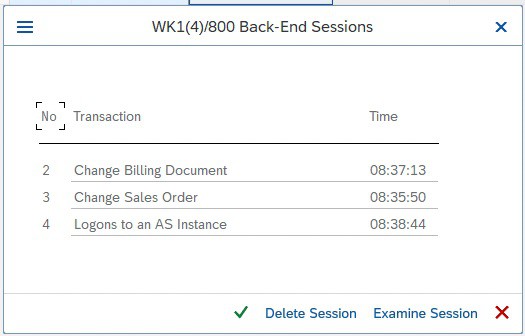 List of open transactions of a specific user
Select the transaction you would like to end and click Delete Session. The lock has gone and you can continue editing the document!
Want more SAP tips?
We’ve got lots of helpful “how to” articles on our blog. Simply visit our blog homepage and click on the “how to guides” tab to see them all.
SAP ERP® and SAP S/4HANA® are the trademarks or registered trademarks of SAP SE or its affiliates in Germany and in several other countries.
Der Beitrag How to End Another User’s SAP Session erschien zuerst auf ecosio.
]]>Der Beitrag How to Save an IDoc Parser Report to a Local File erschien zuerst auf ecosio.
]]>How do I export an IDoc parser report?
Open transaction WE60 and enter the IDoc basic type – e.g. DELVRY01 and then hit the Parser icon or alternatively press F9.

© 2021. SAP SE or an SAP affiliate company. All rights reserved. Used with permission of SAP SE.
The SAP® system will generate the parser report.

© 2021. SAP SE or an SAP affiliate company. All rights reserved. Used with permission of SAP SE.
In order to export the parser report click More > System > List > Save > Local File. When being asked for the format in which you want to export, select Unconverted.
Have you already read our white paper on EDI in SAP®?
Discover the options available to SAP users when it comes to successful EDI integration in various systems with our helpful guide.
In search of other useful tips?
Our blog is filled with helpful “how to” articles, which can be found by clicking the “How to Guides” tab on our blog overview page.
Our resources section is also filled with useful assets, including white papers, webinars and infographics.
Alternatively, if you would like to speak to someone about your specific situation, please get in touch. We are always happy to help however we can!
Der Beitrag How to Save an IDoc Parser Report to a Local File erschien zuerst auf ecosio.
]]>Der Beitrag ecosio to Host SAP/EDI Workshop at UKISUG Connect 2021 erschien zuerst auf ecosio.
]]>What is UKISUG Connect?
UKISUG stands for the UK and Ireland SAP User Group. UKISUG Connect is this group’s large annual conference. At the conference SAP customers, consultants, employees and partners from across the UK & Ireland come together to discuss relevant topics, listen to expert talks and collaborate.

About UKISUG Connect 2021
This year’s event will welcome over 500 SAP customers, 200 SAP experts and 70 exhibitors. Delegates will be able to choose from 80+ sessions across the conference’s three days, as well as enjoy the many opportunities to network. The full schedule can be found here.
At this year’s event ecosio will be exhibiting and will therefore be available throughout the conference to answer any SAP or EDI-related questions.
At the 2021 event ecosio will also be running a workshop, entitled “Electronic Data Interchange (EDI) and e-Invoicing with SAP ERP and SAP S/4HANA – Technical Foundations and Best Practices”.
What ecosio’s workshop will cover
In ecosio’s workshop SAP expert Philipp Liegl will explore how a cost-effective, efficient and sustainable EDI solution can be implemented in SAP systems, detailing several positive steps you can take to ensure your SAP/EDI project is a success – no matter what the target SAP system is or whether it’s yours or a client’s.
Thanks to the number of different SAP systems and EDI integration options out there, identifying which solution makes the most sense for your specific situation can be difficult. Available solutions are numerous, including local EDI converters, SAP PI/PO, SAP Integration Suite with its Cloud Integration component, and fully managed solutions from external service providers. This session will help you identify which of these represents the best option.
Attendees will discover how to access full EDI functionality via their SAP system’s existing user interface and turn their SAP into their own EDI control centre with a seamlessly integrated and customisable solution. They will also learn what the different options for EDI and e-invoicing integration in SAP are, how to reduce the strain on in-house resources and the secrets to long term EDI success.
Interested in attending?
Registration for the event is still open and tickets can be purchased here.
We look forward to seeing you there!
Der Beitrag ecosio to Host SAP/EDI Workshop at UKISUG Connect 2021 erschien zuerst auf ecosio.
]]>Der Beitrag SAP® EDI Project Roles – A Breakdown erschien zuerst auf ecosio.
]]>Given the many different SAP systems available and the myriad ways in which EDI capability can be achieved, however, it can be difficult to know exactly how to go about integrating a new solution. To help, in this article we provide an overview of the different roles involved in a successful SAP EDI project and which tasks are handled by each role.
For the purposes of this article we will look specifically at the roles required to integrate fully managed EDI, as this constitutes the most comprehensive EDI solution available to SAP users – and crucially requires the least internal effort from you. In this approach to EDI integration in SAP, the roles and responsibilities are typically spread across four key players: your EDI provider (ecosio in this example), your business, your SAP consultancy and your partners (e.g. customers/suppliers/relevant governmental agencies)…
Your EDI Provider (ecosio)
Thanks to ecosio’s fully managed approach, it is ecosio, rather than your internal team, that handles the vast majority of EDI tasks (click here for a more detailed breakdown of the amount of internal effort required to setup and operate different EDI solutions).
ecosio’s team of EDI and SAP experts manages the EDI SAP integration process from setup and testing to maintenance and error handling. This way you are able to experience all the benefits of EDI with none of the hassle.
A key part of the success of the ecosio approach is the nature of the two roles involved…
1) Integration Engineer

Every ecosio customer is assigned a dedicated Integration Engineer. This ecosio Integration Engineer is your very own EDI hero and acts as a single point of contact for all things EDI.
As well as being an expert in EDI protocols and formats, they also understand the underlying IDoc structure and the correct data representation. More importantly, they know your company, are familiar with your needs and are easy to get hold of. Contrary to many other EDI support personnel, our Integration Engineers really care about every EDI message exchanged!
Their key responsibilities include (but are not limited to)…
- Managing the SAP EDI integration/migration process end-to-end
- Liaising directly with relevant parties so you don’t have to
- Handling industry-specific EDI issues within SAP
- Proactively identifying and resolving errors to ensure ongoing success
Main contacts: Your internal project manager, the ecosio Onboarding and Operations team, your SAP consultancy project manager, your partners’ EDI contact people
2) Onboarding and Operations Team

Working alongside and supporting your Integration Engineer is ecosio’s Onboarding and Operations team. The job of this team is to provide your ecosio Integration Engineer with support in regard to onboarding, document mappings, connection testing and any other EDI tasks whenever needed. Significantly, there is no need for your organisation to liaise with this team directly, as everything is handled via your Integration Engineer.
Main contacts: ecosio Integration Engineer, SAP consultancy project manager, your partners’ EDI contact people
Your Business
With ecosio’s fully managed EDI solution, there are three different EDI roles that must be filled by individuals in your business:
1) Project Manager

The first and most important role is that of the project manager. They are essential as they understand your business and what you want to achieve better than anyone.
Their responsibilities include…
- Developing the project strategy in line with your ecosio Integration Engineer
- Ensuring your project stays on time and on budget
- Collecting feedback from internal users
- Communicating regularly with your ecosio Integration Engineer and alerting them to any issues or changes in strategy (e.g. a change in the agreed order of partner onboarding)
Main contacts: ecosio Integration Engineer, key users, business users
2) Key Users

These users have the most comprehensive understanding of SAP/EDI. They are responsible for providing feedback during the mapping/testing phase and checking that messages are coming through as desired. They should also alert the project manager if any issues or opportunities for optimisation are spotted. Key users may also be used to help train business users.
Main contacts: Internal project manager, business users
3) Business Users

A business user is simply an employee who uses the final product. Their responsibilities are limited to using the product correctly and alerting the project manager should they spot any issues.
Main contacts: Internal project manager, key users
SAP Consultancy
When it comes to your SAP consultancy, there are four related roles:
1) Project Manager

The SAP consultancy project manager oversees all work done in relation to your project by that organisation. Their main task is to liaise with the ecosio Integration Engineer and pass any relevant information on to colleagues to ensure any SAP ERP issues are resolved as fast as possible. Their focus should be keeping your SAP system working and ensuring your project stays on time and on budget.
Main contacts: ecosio Integration Engineer, SD/MM/FI consultant, ABAP programmer, SAP basis administrator
2) SD/MM/FI Consultant

The SD/MM/FI consultant manages the necessary adjustments to your SAP system to enable seamless integration of your new EDI solution. This involves testing and carrying out acceptance. SD/MM/FI consultants are experts when it comes to SAP problem solving.
Main contacts: SAP consultancy project manager, ABAP programmer
3) ABAP Programmer

The ABAP programmer’s role is to realise custom code when the normal SAP means aren’t sufficient. Effectively, they step in when the SD/MM/FI consultant is unable to fix an issue.
Main contacts: SAP consultancy project manager, SD/MM/FI consultant
4) SAP Basis Administrator

The SAP basis administrator is like the SAP mechanic. They oversee SAP system operation and fix any issues relating to memory / processor use, network, etc.
Main contact: SAP consultancy project manager
Your Partners (Customers / Suppliers / Governmental Agencies)
For other partners, there is only one relevant EDI project role:
EDI Contact Person

This individual acts as the sole contact point for your ecosio Integration Engineer, who will liaise with them directly during onboarding to get them connected. Your ecosio Integration Engineer may also need to contact them post go-live to fix any subsequent message exchange issues.
Main contact: ecosio Integration Engineer
About ecosio and Connections That Work
At ecosio we are experts in providing EDI Connections That Work and have helped hundreds of businesses to experience the benefits of automated document exchange in SAP®.
Our expert Integration Engineers and Onboarding and Operations team takes care of everything from setup and testing to maintenance and error handling. With our solution virtually zero internal effort is required for you to experience successful EDI in SAP®.
To find out how you can experience streamlined, future-proof EDI in your SAP system, get in touch today. We are always happy to answer any questions you may have!
Want this information as a handy one-page infographic?
To help you visualise SAP EDI project roles, we’ve condensed the information in this article into a helpful, printable infographic.
Der Beitrag SAP® EDI Project Roles – A Breakdown erschien zuerst auf ecosio.
]]>Der Beitrag How do I implement EDI with SAP Integration Suite®? erschien zuerst auf ecosio.
]]>- Implementing EDI with SAP Integration Suite® needs strong internal EDI skills and resources for mapping, routing, and 24/7 monitoring
- Managing EDI includes handling integration flows, certificates, mapping tables, and legal compliance like XRechnung or FatturaPA
- Outsourcing EDI to a managed service like ecosio makes the process simpler by providing one connection that covers onboarding, mapping, and monitoring
- Managed EDI reduces internal effort and gives access to a broad EDI network with full SAP integration and message tracking
In this article we show you how companies can best implement electronic data interchange (EDI) to automate message exchange across supply chains using SAP Integration Suite® (previously known as SAP Cloud Platform Integration).
In short are basically two possibilities:
- Managing EDI internally with SAP Integration Suite®
- Outsourcing to a specialised fully managed EDI service provider
We also present a number of questions that decision-makers and IT managers can ask themselves to find the right solution.
EDI and B2B integration with SAP Integration Suite® – what decision do I need to make?
The SAP Integration Suite® itself is a Platform-as-a-Service solution that includes a comprehensive range of services for the in-house development, integration and operation of cloud services or cloud applications. At the same time, individual extensions of cloud and on-premise landscapes can be carried out.
Thor’s SAP hammer…
One of these services is SAP Integration Suite®, which was designed to integrate cloud or on-premise applications into SAP systems. SAP Integration Suite® is an extremely comprehensive and powerful tool from the cloud that allows you to create EDI functions (and much more) in-house and is very popular in companies with large supply chains. In essence it is similar to SAP PI or SAP PO, but unlike these is designed to be used locally.
…can be quite difficult!
However, this tool must be used properly. The big challenge in implementing EDI in SAP Integration Suite® is the high degree of effort and EDI expertise required from the in-house teams that implement the connections individually for each B2B partner.
Therefore, the key question for decision makers implementing EDI in companies with SAP Integration Suite® is:
- How much internal EDI capacity can I use? Do I want to manage EDI completely internally or do I want to relieve my internal teams by outsourcing EDI?
Further potentially useful questions include:
- What EDI capabilities does my B2B network require? Do I need access to Value Added Networks (VANs)? Does I need to connect to Peppol? Do I want automated message exchange with those suppliers without EDI capability (via Web EDI)?
- How flexible do I want my EDI solution to be? Can I rely on a rigid implementation in the long run or do I want to make my EDI solution resilient and future-proof?
- Which technical requirements must my EDI solution fulfil now and in the future? Which formats, protocols, document types and legal regulations in electronic invoicing (e.g. XRechnung in Germany or FatturaPA in Italy) do I need for my B2B network?
Let us now look at the two options in detail:
1) Manage EDI internally with SAP Integration Suite®
In principle, many necessary EDI tasks can be implemented via SAP Integration Suite® with correspondingly high internal capacities and previous EDI knowledge. These include:
- Mapping and routing of all existing and new connections
- Ongoing maintenance of the connection parameters and regular renewal of all certificates
- Ongoing maintenance of mapping tables and industry internal practical knowledge about the implementation of special formats (e.g. VDA)
- Ongoing coordination with B2B partners and procurement of all necessary information (especially during onboarding)
- 24/7 monitoring and troubleshooting
These processes require a great deal of internal EDI know-how and corresponding industry knowledge, especially when problems or errors occur in message transmission, as protocols and formats can vary greatly across different industries, regions and business areas.
Potential problem areas must be considered:
- E-invoice compliance: this can be partially implemented with pre-defined integration flows. However, it is important to ensure that no necessary updates are missed, so that the legal requirements are always met.
- Maintenance of various integration scenarios: this must be done on an ongoing basis, including regular monitoring of integration flows and temporary data as well as the management of security artefacts such as digital certificates.
- No access to message payload. Only available if payload trace is enabled. This can only be activated for ten minutes per iFlow and then automatically deactivates again. This makes real-time monitoring of connections difficult.
It should also be mentioned that additional services may have to be purchased, such as OFTP2 connectivity. If Value Added Networks (VANs) or X.400 are used, companies that manage EDI themselves are also stuck paying a high cost per message. By contrast, EDI service providers can provide lower costs by exploiting economies of scale thanks to high message volumes.
2. Outsourcing to a fully managed EDI service provider
Fully managed EDI is a cloud-based EDI solution where a company is connected to a specialised EDI service provider via a single connection. This service provider then takes over all EDI functions and processes, depending on your company’s requirements.
All the above points are taken care of by an experienced team. The time-consuming coordination of information and technical changes during partner connections is also handled by a dedicated project manager – in turn speeding up the process hugely. Meanwhile, troubleshooting is a fixed component of the 24/7 monitoring and support and is carried out proactively.
This means:
- Internal teams are completely relieved of EDI tasks (especially during operation)
- A single connection provides companies with the complete “EDI package” without the need for EDI expertise
- Companies purchase bespoke, fully functional EDI that is turnkey ready
The technical implementation of the connection between ecosio and SAP Integration Suite® takes place via HTTPS using the ecosio API. This enables a seamless integration of EDI functions into the SAP system using SAP Integration Suite® and ecosio, which retains complete data transparency within the company – including full text search and message status tracking.
This means, for example, that the exact delivery status of a sent EDI message, right up to the final recipient, can be viewed directly in the SAP system as IDoc status. This gives specialist departments security and confidence in the EDI solution as well as the possibility to view failed messages and the exact reasons for rejection directly in the familiar SAP GUI at any time.
Summary: EDI with SAP Integration Suite®
You now know the two possibilities for EDI implementation with SAP Integration Suite®: handle it yourself or outsource it. SAP Cloud Platform is a comprehensive Platform-as-a-Service solution that can provide a good foundation for experienced developers and EDI experts – as long as your company has appropriate resources and expertise and potential future changes and extensions to your EDI landscape are anticipated and planned for in advance.
Partnership with a fully managed EDI service provider enables companies to fully manage and operate all EDI functions without the need for internal EDI effort and expertise, flexibly scalable and monitored 24/7 during operation.
Do you still have questions about EDI and SAP Integration Suite®?
Do you still have questions about SAP Integration Suite® or electronic data exchange with an SAP® ERP or SAP S/4HANA® system? Get in touch with us – we will be happy to help you.
Discover more about our updated product, ecosio.flow.
SAP ERP and SAP S/4HANA are the trademarks or registered trademarks of SAP SE or its affiliates in Germany and in several other countries.
Der Beitrag How do I implement EDI with SAP Integration Suite®? erschien zuerst auf ecosio.
]]>Der Beitrag How to create an SAP transaction code erschien zuerst auf ecosio.
]]>- Begin by using transaction SE93 to enter your desired transaction code, for example, ZABAPGIT
- Provide a meaningful short description that will appear in the SAP menu favourites, helping users identify the purpose of the transaction code
- Define the start object as a program with selection screen (report transaction) and specify the associated ABAP programme and screen number, choosing the GUI capabilities to suit your environment
- Save the new transaction code with either the Local Object option or assign it to a package, making it immediately available to the user
SAP transaction codes are easy-to-remember identifiers consisting of letters and numbers that can be used to start a specific SAP transaction. For example, the SAP transaction for processing a vendor can be called up easily using transaction code XK03, and the transaction for processing a customer using transaction code XD03, etc. Sometimes it may also be necessary to assign a separate transaction code for a specific ABAP report, so that it can be easily integrated into the SAP start menu under Favorites, for example.

© 2020. SAP SE or an SAP affiliate company. All rights reserved. Used with permission of SAP SE.
Suppose we want to create a new SAP transaction code for abapGit. abapGit is an ABAP client for Git, which allows you to manage ABAP code in Git – e.g. using GitHub, Bitbucket etc.
To start abapGit, you usually navigate to transaction SE38 and execute the program ZABAPGIT_STANDALONE. To make this easier, we want to start abapGit using the transaction code ZABAPGIT. However, we must first create this. How this works, we will look at below.
Create new SAP transaction code
To create a new transaction code, we start transaction SE93 and enter the desired transaction code in the selection window – in our case ZABAPGIT.
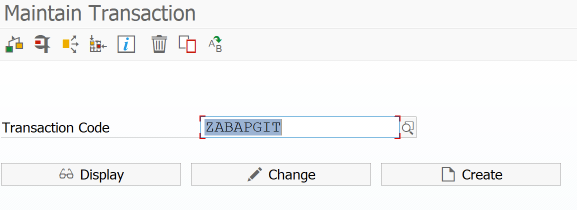
© 2020. SAP SE or an SAP affiliate company. All rights reserved. Used with permission of SAP SE.
Then we choose a short name for the transaction code (this will later be displayed as text in the SAP menu favourites – so ideally choose a meaningful name) and specify the type of the start object. In the case of abapGit we want to start a program with a selection screen (report transaction).
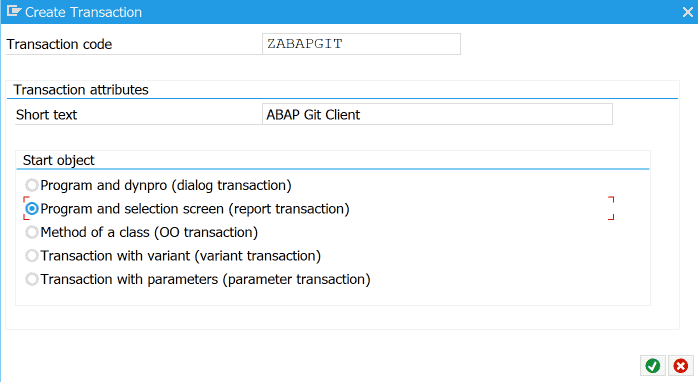
SE93 – Short name and type of start object
© 2020. SAP SE or an SAP affiliate company. All rights reserved. Used with permission of SAP SE.
In the next dialogue we select the programme to be started within the transaction code. In the case of abapGit the ZABAPGIT_STANDALONE.
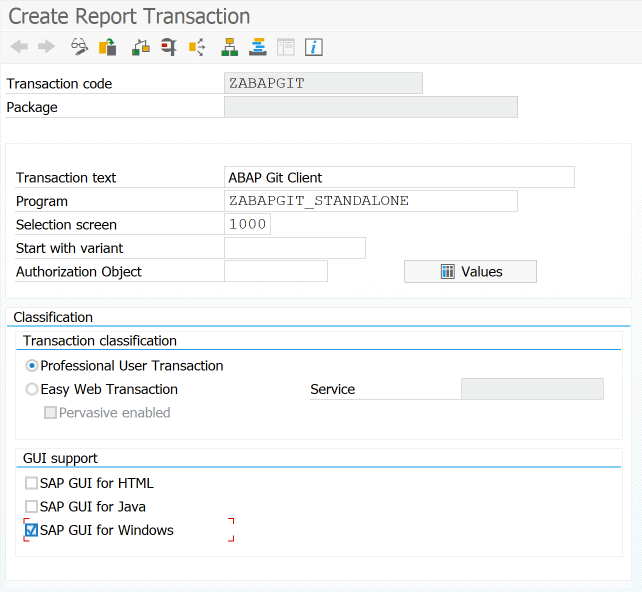
© 2020. SAP SE or an SAP affiliate company. All rights reserved. Used with permission of SAP SE.
Then we still need the screen number. With the GUI capability, you can still specify under which GUI the transaction can run. Then press save. This opens a dialog for creating an object directory entry.

SE93 – Create object catalogue entry
© 2020. SAP SE or an SAP affiliate company. All rights reserved. Used with permission of SAP SE.
If the transaction code is to be used only by the current user, Local Object can be selected. Then just press Save and it is available immediately.
Have any questions?
Do you still have questions about SAP transaction codes or EDI in SAP more generally? Feel free to contact us, we would love to help you!
SAP ERP and SAP S/4HANA are the trademarks or registered trademarks of SAP SE or its affiliates in Germany and in several other countries.
Der Beitrag How to create an SAP transaction code erschien zuerst auf ecosio.
]]>Der Beitrag Alternative Solutions for EDI in SAP PI and SAP PO erschien zuerst auf ecosio.
]]>- Managing EDI with SAP PI or SAP PO internally yourself
- Installing a local EDI converter and connecting to SAP PI or SAP PO
- Outsourcing to a fully managed EDI service provider
We will show you which EDI functionalities you can implement in your company with the respective solution and which questions decision-makers can use to help themselves in choosing the right solution.
EDI and B2B integration with SAP PI or SAP PO – What do I need to know?
SAP Process Integration (SAP PI) is a comprehensive software component that enables data exchange between the SAP system and internal and external systems. SAP PI uses various Java-based routing and integration mechanisms as well as various adapters that can be used to implement transport protocols and format conversions.
SAP Process Orchestration (PO) is an SAP PI installation variant (with different license models) that has been enhanced to include functionality in the area of “business process modeling and implementation”. In addition to the classic SAP PI capabilities of message routing, mapping and connectivity, PO also includes parts of SAP Business Process Management and SAP Business Rules Management.
In terms of EDI, the core technical functionalities of SAP PI and SAP PO are:
- Connectivity
- Mapping
- Routing
Under Connectivity, SAP PI offers a range of adapters that can be used to convert various message transport protocols. These include many protocols that are required for electronic message exchange with external partners, such as AS2, X.400, OFTP2, SFTP, RESTful Web Services, and so on. Mappings can be used to implement translations between SAP internal formats (for example, IDoc) and external EDI formats such as EDIFACT, XML, ANSI ASC X.12, and so on. Mappings can be converted using a graphical editor, based on XSLT, or using a Java program. Routing controls message delivery to different recipients based on information in the message.
All three solutions presented in the same way are based on these core functionalities of SAP PI or SAP PO, but differ essentially in the following factors in EDI operation or in the following questions that the decision-maker can ask himself:
- How much internal EDI capacity (i.e. personnel & EDI expertise) can I use for mapping, routing, 24/7 monitoring, troubleshooting and maintenance of the connections? Do I want to manage EDI completely internally or do I want to relieve my internal teams and outsource EDI?
- Which technical requirements does my EDI solution have to meet? Which document types, protocols, formats and legal requirements regarding electronic invoicing (e.g. XRechnung in Germany or FatturaPA in Italy) do I need for my B2B network?
- What EDI capabilities does my B2B network require? Do I need access to Value Added Networks (VANs)? Do I want or need to connect to Peppol? Do I have suppliers without EDI capabilities that I still want to connect to automated message exchange (with Web EDI?)
- How flexible or scalable do I want to design my EDI solution? Can I rely on a rigid implementation in the long term or do I want to become more resilient and future-proof with regard to the technical requirements?
If you know the answer to all these questions for your company, you will be able to make the right choice for your business. Keeping the questions in mind, we will now look at the three technical approaches for an EDI implementation in SAP PI and SAP PO.
1. Managing EDI with SAP PI or SAP PO internally
SAP PI and SAP PO are extremely complex and extensive software components that allow for internal implementation of some EDI functionalities. According to the point-to-point principle, automated EDI connections to individual partners can be established by appropriately qualified personnel.
However, one of the main challenges during implementation is precisely the complexity of the software. One does not get the proverbial hammer and nail in the hand, but a very extensive toolset. For the independent configuration and the ongoing operation of EDI connections via SAP PI or SAP PO, highly qualified employees with corresponding EDI expertise are therefore required. If smooth EDI operation is to be guaranteed 24/7, these employees must be available on a continuing basis.
Furthermore, not all required EDI functionalities (current and future) may be supported or require the use of additional solutions, as shown in the graphic:
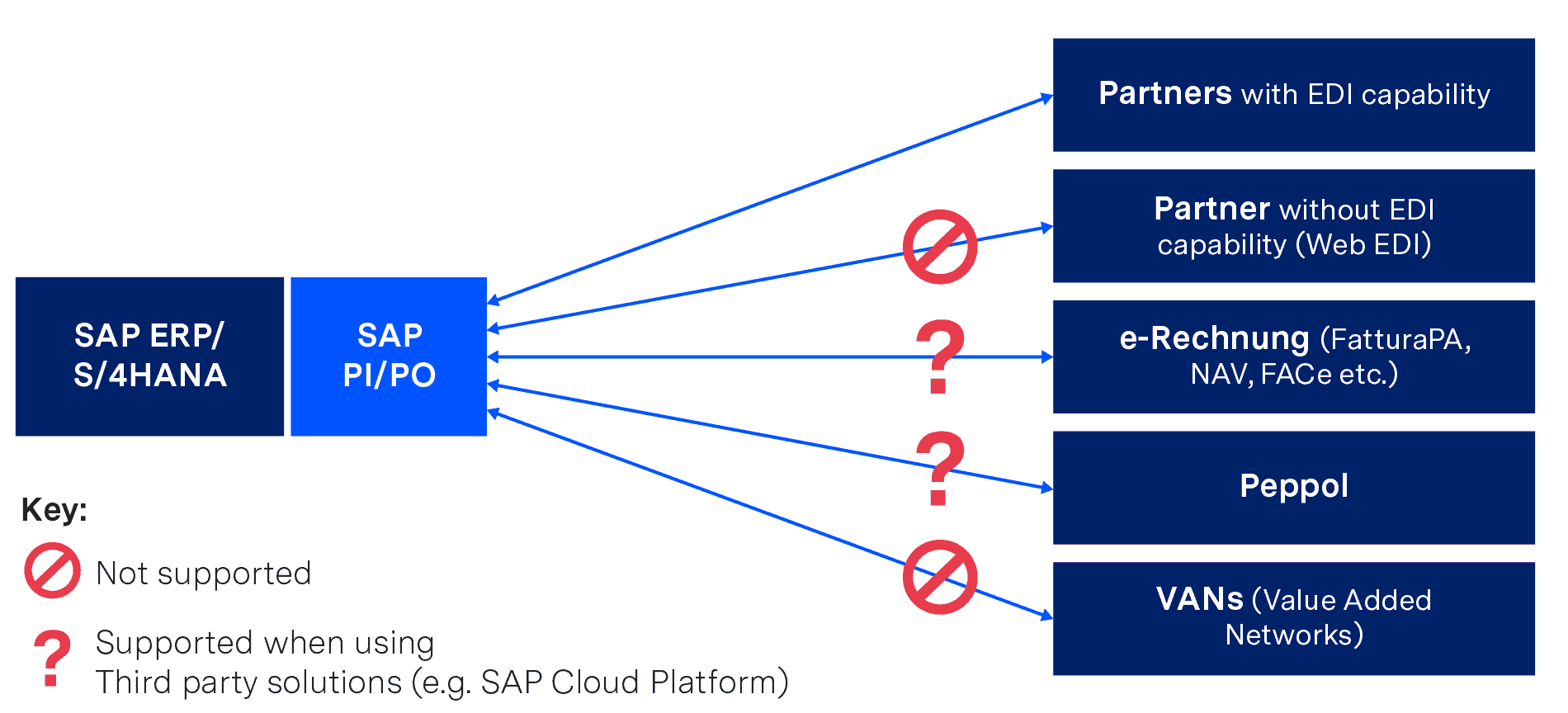
If you want to implement EDI internally purely with SAP PI or SAP PO, you will therefore have to do without some functions (or implement them as a third-party solution), but you will also need highly qualified personnel, EDI know-how and sufficient resources to cope with:
- Mapping and routing of all necessary connections
- Ongoing maintenance of the connection parameters and regular renewal of certificates
- Ongoing maintenance of mapping tables and industry internal practical knowledge about the implementation of special formats (e.g. VDA)
- Ongoing coordination with the B2B partners and procurement of all necessary information (especially in the onboarding process)
- 24/7 monitoring and troubleshooting
Incidentally, those who only want to work with SAP PI have to accept a major restriction – this only allows flat file formats via SFTP/SOAP/REST/HTTP protocols. If you want to use “classic” EDI formats (such as EDIFACT or ANSI ASC X12) and protocols (such as AS2 or X.400), you must have either a special package from a third-party manufacturer or the “B2B Add-on” from SAP – but this is only available with the SAP PO license (even if no other SAP PO functions are required).
The issue of X.400 costs should also be mentioned. If messages have to be transmitted to third-party networks that are subject to charges, these costs can be quite high. As an individual company, often only poor rates are available due to the relatively small amount of data being exchanged.
Internal implementation of EDI with SAP PI and SAP PO offers you a very high degree of functionality and flexibility. However, configuration, operation and maintenance also require the use of appropriate resources, which must be included in the total cost of ownership analysis. These costs must also be taken into account when using a local EDI converter, the option we present next…
2. Installing a local EDI converter and connecting to SAP PI or SAP PO
Another possibility is the acquisition and operation of a local EDI converter, which is connected to SAP PI or SAP PO. This is a software to be installed locally that converts documents from SAP internal IDoc format to partner format and vice versa.
Converter solutions are individually adaptable, but are potentially cost-intensive due to individually payable license costs for various functionalities, formats and upgrades in combination with long-term maintenance contracts. For example, support for protocols such as X.400 or services such as VAN connectivity must be purchased separately.
Local converter solutions must also be operated completely by internal teams, just as in the previous solution (implementing and operating EDI in SAP PI or SAP PO internally). This includes particularly time-consuming processes such as mapping, testing and 24/7 monitoring. This again requires appropriately trained employees.
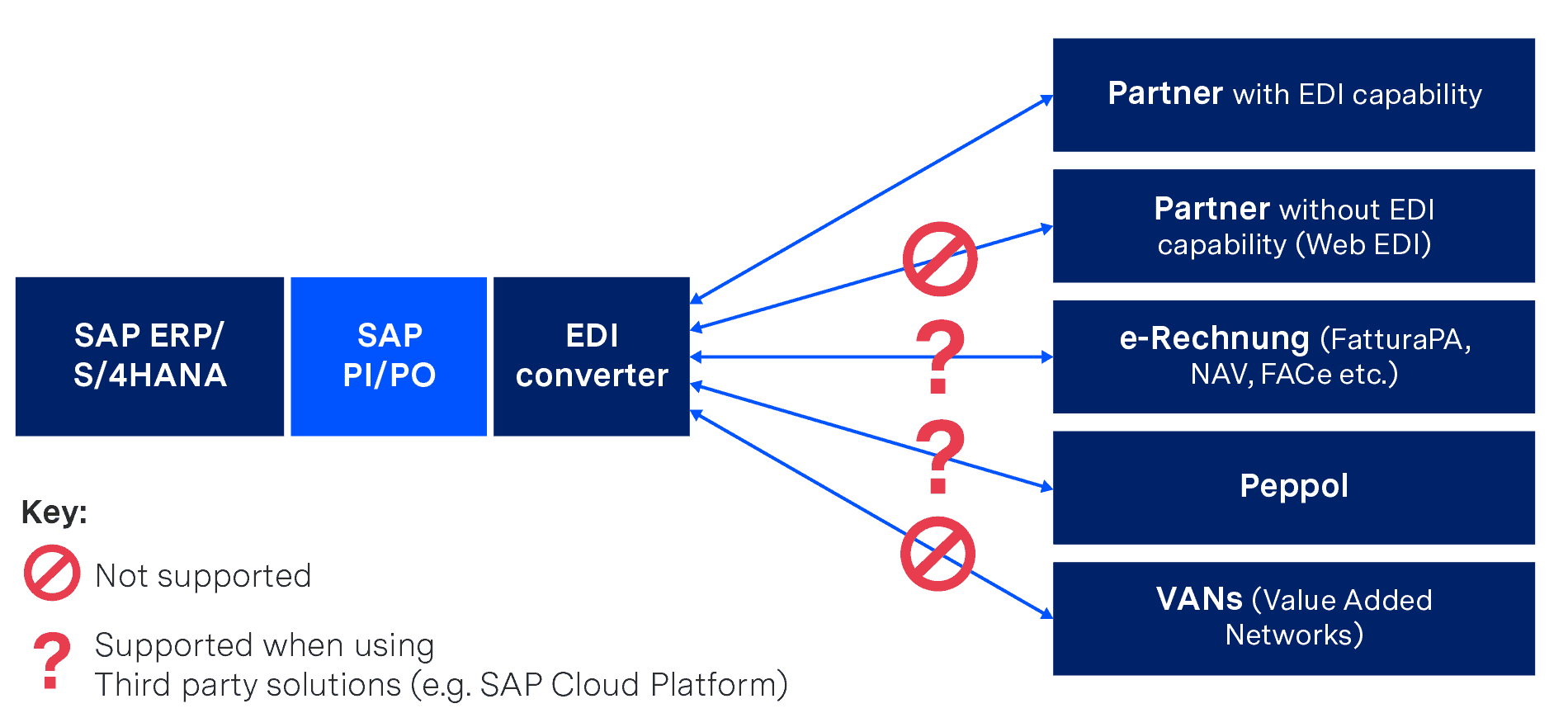
SAP PI/PO with local EDI converter
It should also be considered that both the software itself and the individual mappings age. In other words, over time new releases of the converter will be published, which do not necessarily allow an upgrade from the existing version and mappings. This results in corresponding migration projects that have to be realised internally or with the help of an external consulting company.
3. Outsourcing to a fully managed EDI service provider
Fully managed EDI is a cloud-based EDI solution where a company is connected to a specialised EDI service provider via a single connection. This service provider then takes over all EDI functions and processes, depending on your company’s requirements.
If your company uses SAP PI or SAP PO, all you need for a successful connection to ecosio as your EDI service provider is the snap ecosio Bridge for SAP and its turnkey integration flows in SAP PI or SAP PO, which was especially created by SNAP Consulting.
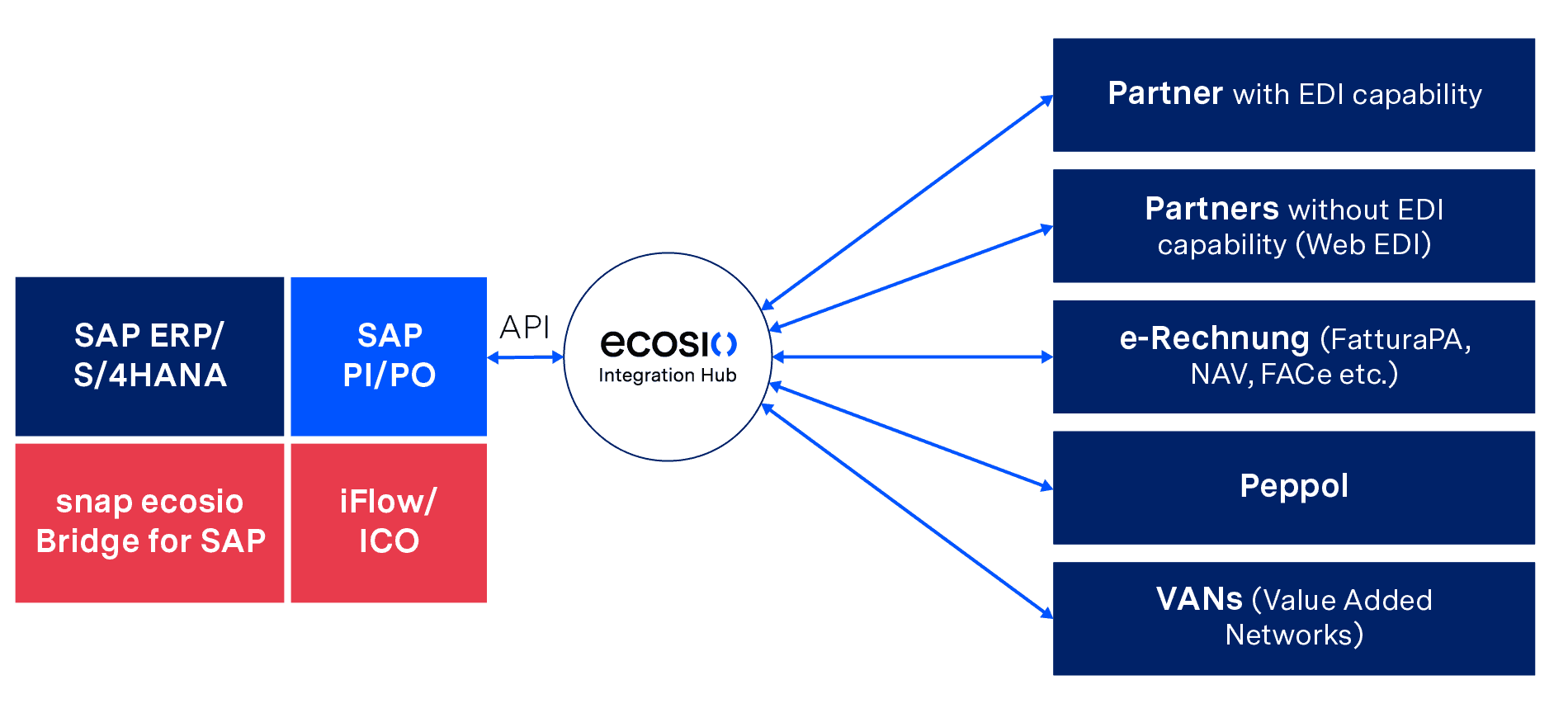
Deep EDI Integration in SAP with snap ecosio Bridge for SAP and iFlow/ICO
In this solution the EDI service provider creates and ensures all technically desired EDI prerequisites, such as routing via various protocols, VANs and Peppol or conversion into all common and necessary formats, including legal requirements in the field of e-invoicing. Further, operation, 24/7 monitoring and partner onboarding (including partner communication) are also handled by the service provider.
The deep integration of the EDI functionalities into the SAP system also enables your business department to:
- Jump to the original EDI message for incoming messages, directly in SAP – without need for an extra login
- Jump to the generated EDI message for outgoing messages – again without extra login
- Track the EDI message status directly in SAP by changing the IDoc status of sent EDI messages to status 40 or 41 – depending on whether the recipient received the message or not
- Conduct a full text search of all messages and documents
- Benefit from automatic alerts/notification if messages are incorrect or could not be delivered
Updates, the ongoing certification of protocols and new SAP versions (such as SAP S/4HANA) are easily adopted and supported. Fully managed EDI offers companies the possibility to use all EDI functions without an expiration date – providing maximum EDI efficiency with minimum internal effort.
Summary
You now know the three possible technical approaches for implementing EDI on the basis of SAP PI or SAP PO and which criteria and questions you should use to select the most suitable one for your company. Essentially, you need to assess how much capacity you have internally to cope with implementing and operating an EDI solution.
Independent EDI implementation or the use of a local EDI converter enables a company to send and receive EDI messages, but requires a high level of internal effort, and highly qualified personnel. In addition, some functionalities may have to be purchased externally.
Outsourcing to a fully managed EDI service provider offers you all the EDI functionalities available with SAP PI and SAP PO but in a flexible and freely scalable way. The entire effort, from mapping and routing to monitoring and troubleshooting, is taken over by the EDI service provider, relieving internal teams.
Want more information?
Discover more about our updated product, ecosio.flow.
Do you still have questions about SAP PI data exchange or EDI with an SAP ERP system? Feel free to contact us, we would love to help you!
SAP ERP and SAP S/4HANA are the trademarks or registered trademarks of SAP SE or its affiliates in Germany and in several other countries.
Der Beitrag Alternative Solutions for EDI in SAP PI and SAP PO erschien zuerst auf ecosio.
]]>Der Beitrag How to Set Up and Manage Automatic SAP Jobs erschien zuerst auf ecosio.
]]>- SAP jobs run processes automatically at scheduled times to avoid manual execution, such as running tasks during off‑peak hours or retrieving EDI messages
- You create jobs in transaction SM36, choosing a unique job name, assigning a job class for priority (A high, B medium, C low), and defining start conditions and processing steps
- Jobs consist of one or more steps, typically running ABAP programs with specific variants
- Job status transitions from planned to released, ready, active, and finished, and any cancellations or issues are visible in job logs and spool
What is an SAP job for and how is it structured?
Background jobs are used in many areas where processes are executed automatically by the system at certain times without manual intervention. In the area of Unix systems, the concept of cron jobs is well known, and on Windows computers,background processes can be set up with the task scheduler. SAP also has appropriate background processing for processes – so-called SAP jobs.
SAP jobs can be executed once or recurrently – for example, every day at midnight. This allows, for example, resource-intensive processing to take place at night when few or no users are logged on to the system. Another application example is the recurring collection of new EDI messages from an external B2B Integration Hub, as in the case of ecosio.
In the following article we will introduce the most important features and show how to set them up. We then go into how to modify existing SAP jobs and how to read processing logs from SAP jobs.
Properties of SAP jobs
SAP jobs are set up using transaction SM36. The following graphic shows an example SAP job.
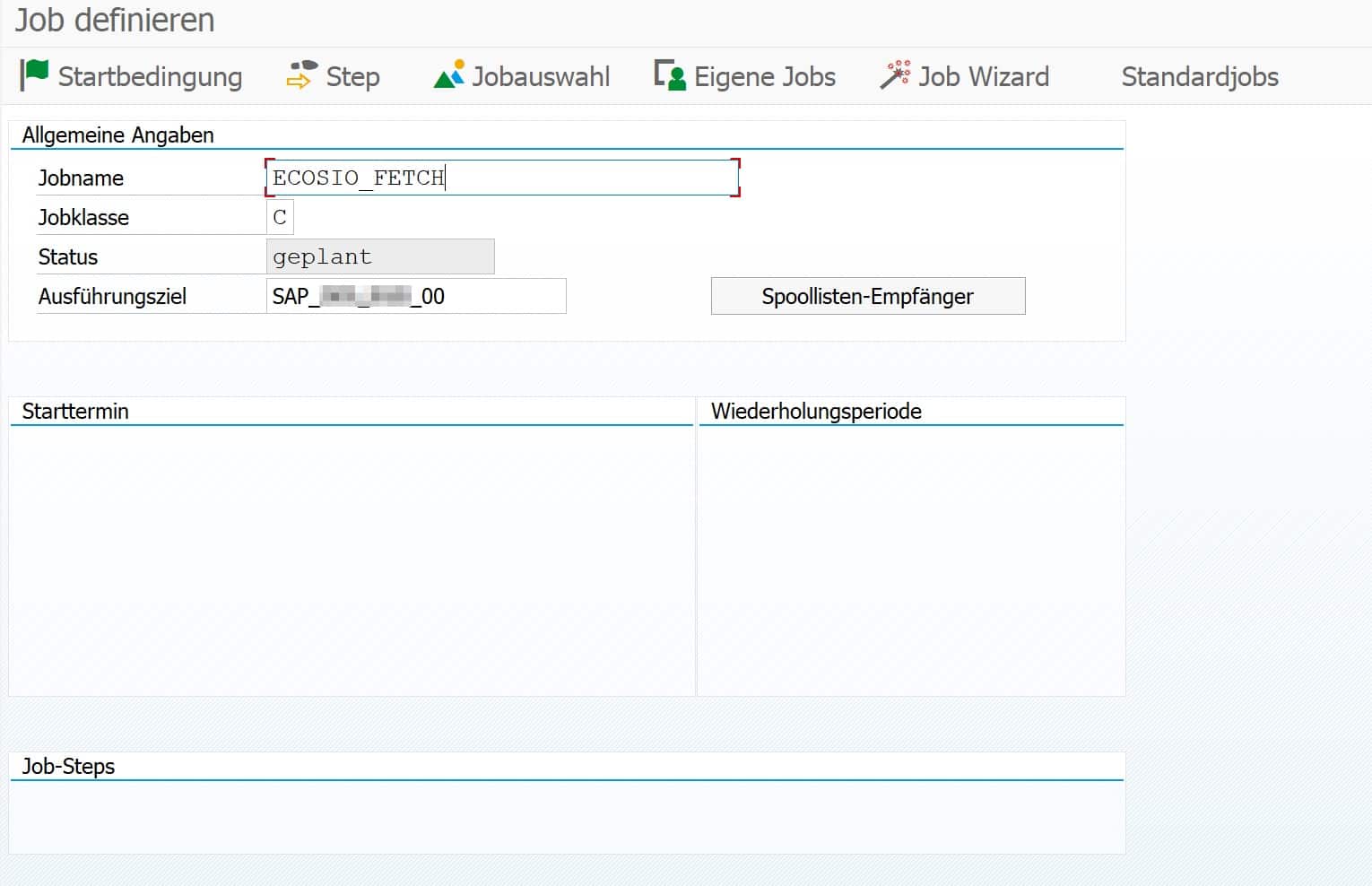
© 2020. SAP SE or an SAP affiliate company. All rights reserved. Used with permission of SAP SE.
There are unique job names that can be freely assigned. For reasons of clarity, it is recommended that you adhere to a uniform system-wide naming convention.
SAP job classes
An SAP job must be assigned to a specific job class when it is created. Job classes define the priority with which a background job is executed. A distinction is made between the following three classes.
Class A – High priority
Urgent or critical background jobs can be planned with class A. These jobs are given priority before class B or C jobs are executed.
Class B – Medium priority
As soon as class A jobs are processed, class B jobs are started.
Class C – Low priority
Class C jobs have the lowest priority and are only started when class A and B jobs have been processed.
Status
Besides the assigned priority class, there is a certain status. The possible statuses are as follows:
- Planned
The job is only scheduled, but has no start condition, end date, execution frequency, and so on, and will never run. - Released
The job has assigned process steps and all the parameters for execution are available. The job is waiting to be executed for the first time as soon as the start condition is fulfilled – e.g. a certain time. - Ready
The job is ready for execution and has been placed in the execution queue by the job scheduler. As soon as a background process is free, the job is executed. - Active
The job runs in the background. The status of the job can no longer be changed during execution. - Ready
The job has been successfully completed. - Cancelled
The job has been canceled. The termination may have been caused manually by an administrator, or a problem may have occurred during the execution of the job. The exact details can be read in the job logs and in the spool (see description below).
Steps
Every SAP job consists of one or more processing steps – so-called steps. The following figure shows an example step.
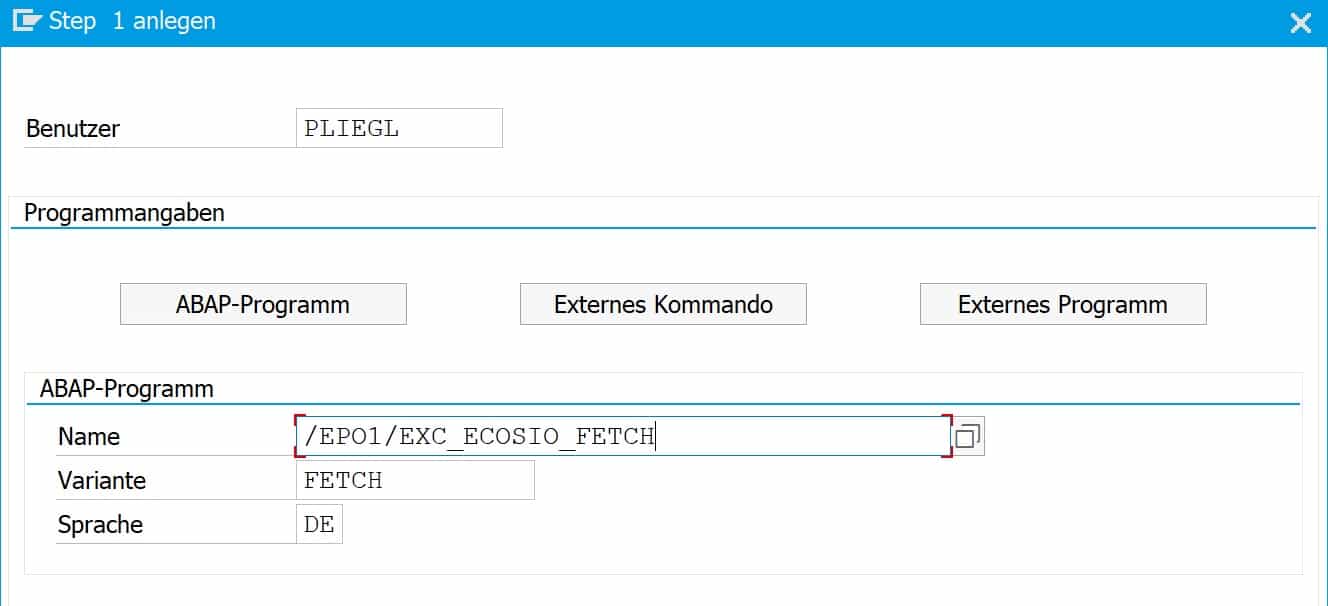
© 2020. SAP SE or an SAP affiliate company. All rights reserved. Used with permission of SAP SE.
A step in an SAP job can have three different characteristics:
- ABAP program
In this case, an ABAP program is started and a variant and the language can be passed. In the screenshot above, for example, the ABAP program /EPO1/EXC_ECOSIO_FETCH is executed with the variant FETCH, which periodically fetches messages from the ecosio cloud-based EDI solution (our Integration Hub). - External command
With this function, a command predefined by the system administrator can be called up and parameters can also be transferred for the call. - External program
In this case an external program is started, whereby parameters can also be transferred here.
Setup
In the first step, the job name and job class are defined in transaction SM36, as mentioned above. Then the individual steps of the job are defined, which are executed in sequence – from top to bottom.
The next step is to select the start condition of the job.

© 2020. SAP SE or an SAP affiliate company. All rights reserved. Used with permission of SAP SE.
Usually you choose a certain time as start condition, from when the job should be executed, and a repeat interval – e.g. every 10 minutes. If no time is specified, the job remains in the “scheduled” state and is not executed.
After specifying a time and a repetition frequency, the job is saved. Afterwards the job changes to “released” and waits for its first execution. Alternatively, a job can be executed immediately by clicking on “Immediately”.
Change
To change an SAP job, go to transaction SM37. There you can get an overview of all jobs in the different statuses. To change a job that has already been released, select it in the overview and then choose “Job > Released – Scheduled” from the menu bar.

© 2020. SAP SE or an SAP affiliate company. All rights reserved. Used with permission of SAP SE.
The job can now be processed again and then released again.
View logs
As with a regularly executed process, an SAP job can also terminate unexpectedly. In this case, we recommend that you look at the logs. You can access this again using transaction SM37. In the first step, select one of the jobs already executed and then choose “Spool” or “Job log”.

© 2020. SAP SE or an SAP affiliate company. All rights reserved. Used with permission of SAP SE.
These two functions provide an overview of the logs themselves and the individual process steps. A prerequisite is, of course, that the process steps also write processing logs.
With the introduction of SAP S/4HANA, the IDoc format will undergo some changes. You can find out what these changes are in detail in this article.
Do you have any questions?
Do you still have questions about SAP jobs or the connection of external systems to your SAP ERP or SAP S/4HANA system? Do not hesitate and contact us. We are always available to answer your questions.
SAP ERP and SAP S/4HANA are the trademarks or registered trademarks of SAP SE or its affiliates in Germany and in several other countries.
Der Beitrag How to Set Up and Manage Automatic SAP Jobs erschien zuerst auf ecosio.
]]>Der Beitrag IDoc Status Change in SAP ERP erschien zuerst auf ecosio.
]]>- Errors during inbound or outbound IDoc processing can cause an IDoc to “hang” in an error status, often due to incomplete data from business partners or misconfiguration
- An IDoc stuck in status 20 (“Error triggering EDI subsystem”) must first be reset to status 30 (“IDoc is ready to send via ALE”) before it can be processed agai
- To change the status of one or multiple IDocs, run transaction SE38 and execute the programme RC1_IDOC_SET_STATUS then restart processing using transaction WLF_IDOC
- The article includes a full list of standard SAP IDoc status codes, covering both outbound (00–49) and inbound (50–75) scenarios for reference and troubleshooting
The status of an IDoc
IDoc documents are used to exchange business documents such as purchase orders, invoices, delivery notes, etc. with an SAP system. Upstream of the SAP system, an EDI service provider typically converts the IDocs to and from the various formats of the individual business partners (for example, EDIFACT or ANSI ASC X12).
Errors can occur during processing of both inbound and outbound IDocs in the SAP system. For example, incomplete IDocs may arrive in the SAP system because a business partner has not sent all the information requested. In this case, the IDoc “hangs” in an error status.
The following figure shows an extract from SAP transaction BD87.
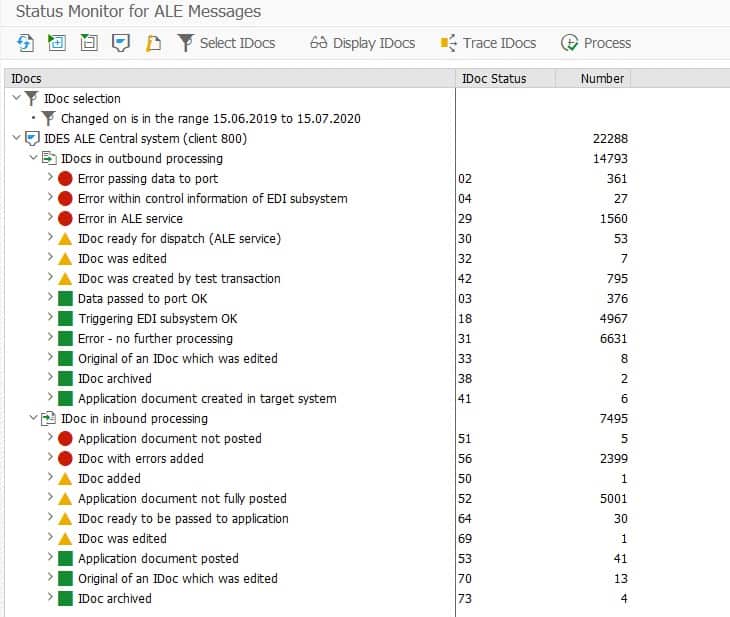
BD87 transaction with IDoc overview
© 2020. SAP SE or an SAP affiliate company. All rights reserved. Used with permission of SAP SE.
For example, an outgoing IDoc has stuck in status 20. This status means ‘Error when triggering the EDI subsystem’. One reason for this error could be incorrectly configured settings in the system. The IDoc detail view provides more information. As soon as the error has been corrected, processing of the IDoc must be restarted. However, status 20 does not allow direct processing, so the status must first be set to 30. 30 stands for ‘IDoc is ready to send (ALE service)’.
A list of all the possible statuses of an IDoc can be found at the end of this article.
Change Status
To change the status of an IDoc, proceed as follows.
Call transaction SE38 and execute the program RC1_IDOC_SET_STATUS.

Program call in transaction SE38
© 2020. SAP SE or an SAP affiliate company. All rights reserved. Used with permission of SAP SE.
The following report will then open. If you want to change the status of several IDocs at once, you can use the button next to the text field ‘IDOC number’ and specify several IDoc numbers.
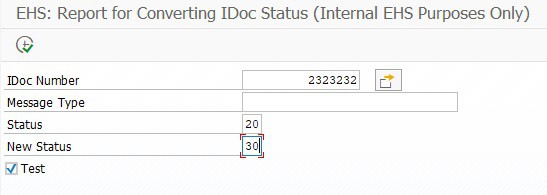
© 2020. SAP SE or an SAP affiliate company. All rights reserved. Used with permission of SAP SE.
You can then trigger the processing of the IDoc again — for example, in transaction WLF_IDOC.
Our blog is filled with helpful “how to” articles, which can be found by clicking the “How to Guides” tab on our blog overview page.
Any more questions?
Do you still have questions about IDocs or electronic data exchange with an SAP ERP system? Do not hesitate and contact us or use our chat. We’re always happy to help!
IDoc statuses
The following table provides an overview of the standard IDoc statuses in an SAP system.
| STATUS | Description |
|---|---|
| Outgoing IDocs (from SAP view) | |
| 00 | Not used, only R/2 |
| 01 | IDoc created |
| 02 | Error passing data to port |
| 03 | Data passed to port OK |
| 04 | Error within control information of EDI subsystem |
| 05 | Error During Translation |
| 06 | Translation OK |
| 07 | Error during syntax check |
| 08 | Syntax check OK |
| 09 | Error during interchange handling |
| 10 | Interchange handling OK |
| 11 | Error during dispatch |
| 12 | Dispatch OK |
| 13 | Repeat transmission (Retransmission) OK |
| 14 | Interchange acknowledgement positive |
| 15 | Interchange acknowledgement negative |
| 16 | Functional acknowledgement positive |
| 17 | Functional acknowledgement negative |
| 18 | Triggering EDI subsystem OK |
| 19 | Data passed to port for test |
| 20 | Error triggering EDI subsystem |
| 21 | Error passing data for test |
| 22 | Dispatch OK, acknowledgement still due |
| 23 | Error during retransmission |
| 24 | Control information of the EDI subsystem OK |
| 25 | Processing despite syntax error (outbound) |
| 26 | Error during syntax check of IDoc (outbound) |
| 27 | Error in dispatch level (ALE service) |
| 28 | IDoc sent to ALE distribution unit retroactively |
| 29 | Error in ALE service |
| 30 | IDoc ready for dispatch (ALE service) |
| 31 | Error, no further processing |
| 32 | IDoc was edited |
| 33 | Original of an IDoc that was edited |
| 34 | Error in the control record of IDoc |
| 35 | IDoc reloaded from archive |
| 36 | Electronic signature not performed (timeout) |
| 37 | Error when adding IDoc |
| 38 | IDoc archived |
| 39 | IDoc is in target system (ALE service) |
| 40 | Application document not created in target system |
| 41 | Application document created in target system |
| 42 | IDoc created by test transaction |
| Incoming IDocs (from SAP view) | |
| 50 | IDoc added |
| 51 | Application document not posted |
| 52 | Application document not fully posted |
| 53 | Application document posted |
| 54 | Error during formal application check |
| 55 | Formal application check OK |
| 56 | IDoc with errors added |
| 57 | Test IDoc: Error during application check |
| 58 | IDoc copy from R/2 connection |
| 59 | Not used |
| 60 | Syntax error in IDoc (inbound) |
| 61 | Processing despite syntax error (inbound) |
| 62 | IDoc passed to application |
| 63 | Error passing IDoc transfer to application |
| 64 | IDoc ready to be passed to application |
| 65 | Error in ALE service |
| 66 | IDoc waits for predecessor IDoc (serialization) |
| 67 | Not used |
| 68 | Error, no further processing |
| 69 | IDoc was edited |
| 70 | Original of an IDoc that was edited |
| 71 | IDoc reloaded from archive |
| 72 | Not used, only R/2 |
| 73 | IDoc archived |
| 74 | IDoc created from test transaction |
| 75 | IDoc is in inbound queue |
SAP ERP and SAP S/4HANA are the trademarks or registered trademarks of SAP SE or its affiliates in Germany and in several other countries.
Der Beitrag IDoc Status Change in SAP ERP erschien zuerst auf ecosio.
]]>Der Beitrag How Can I Add an Entry to an SAP Table? erschien zuerst auf ecosio.
]]>Sometimes it can be useful to add a few entries to a table quickly for test purposes, so that a particular functionality can be tested. One possibility is presented below. This type of data change should only be performed on test systems and not on production environments. In most cases, however, this is prevented anyway by the lack of access to the corresponding transactions in production environments.
Do you have questions about SAP or EDI? Get in touch with us – we are always happy to help!
Add entry to an existing SAP table
Option A): Using the standard transaction SE16 or SE16n
This option is the “cleanest” approach, but is only available if a maintenance dialog is created for the table and table processing is allowed. To check whether there is a maintenance dialog, call transaction SE11, enter the table name and press F8. Click on “Delivery and Maintenance” to display the editing option.

© 2020. SAP SE or an SAP affiliate company. All rights reserved. Used with permission of SAP SE.
If “Display/Maintenance Allowed with Restrictions” or “Display/Maintenance Not Allowed” is activated, only options B), C) or D) come into consideration – see below.
If “Display/Maintenance Allowed” is activated, however, entries can be created using transaction SE16 or SE16n. To change existing entries, you can use transaction SM30, for example.
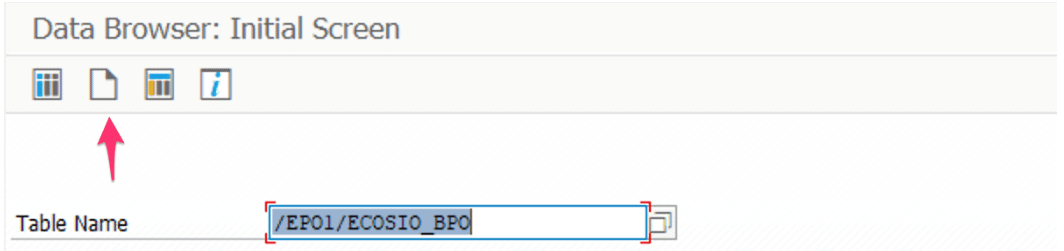
© 2020. SAP SE or an SAP affiliate company. All rights reserved. Used with permission of SAP SE.
The newer transaction SE16n provides its own maintenance dialog, which can be called via “View Maintenance”. You can use this to change existing entries and create new entries.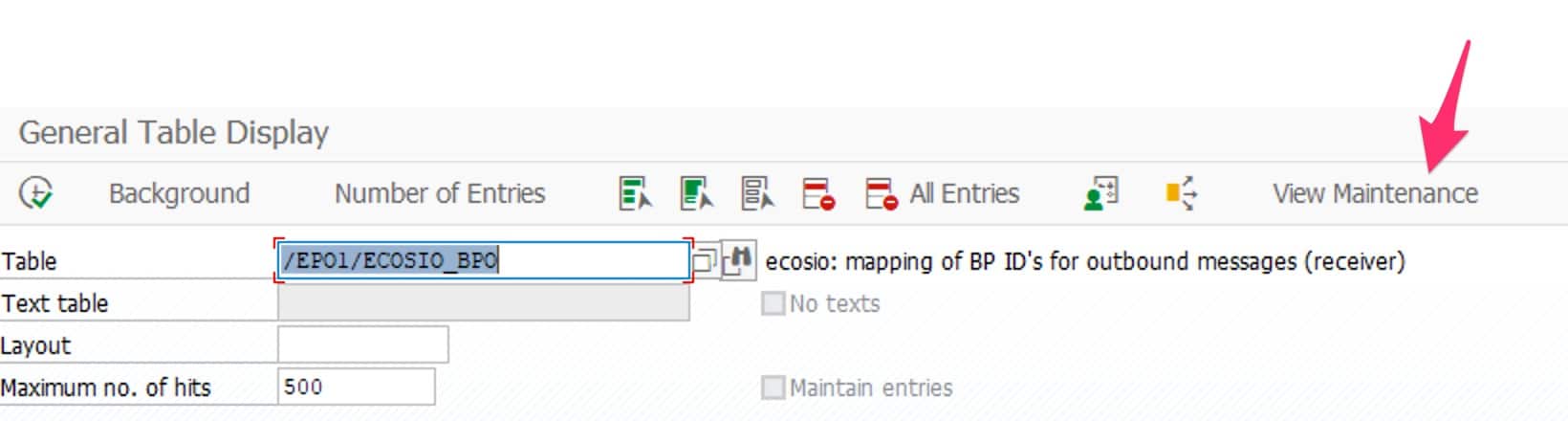
Transaction SE16n
© 2020. SAP SE or an SAP affiliate company. All rights reserved. Used with permission of SAP SE.
Option B) Via transaction SE37
If it is not possible to add entries by default using transaction SE16, the following approach can also be chosen.
First, open transaction SE37 and choose the function module SE16N_INTERFACE. Then start the dialog with F8 or by clicking on “Test/Execute”.
If it is not possible to access transaction SE37, continue with option C or D (see below).
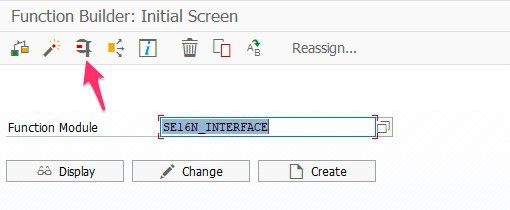
The following dialog will then open.

© 2020. SAP SE or an SAP affiliate company. All rights reserved. Used with permission of SAP SE.
In the first line, instead of <THE_TABLE_NAME>, enter the name of the table for which new entries are to be added. Enter an X for each of the parameters I_EDIT and I_SAPEDIT. Then execute with F8.
This opens the selected table and new entries can be added with the function “New entry”. Furthermore, existing entries can also be changed very easily.

© 2020. SAP SE or an SAP affiliate company. All rights reserved. Used with permission of SAP SE.
The tabular display allows easy editing, as seen in programs like Excel, for example.
Option C): Using transaction SE16 with debug mode
In the first step, start transaction SE16 and select the desired SAP table. Then press F8 to execute the transaction so that the individual table entries are displayed.

© 2020. SAP SE or an SAP affiliate company. All rights reserved. Used with permission of SAP SE.
Double-click on one of the existing SAP table entries to open the detailed view of an entry.
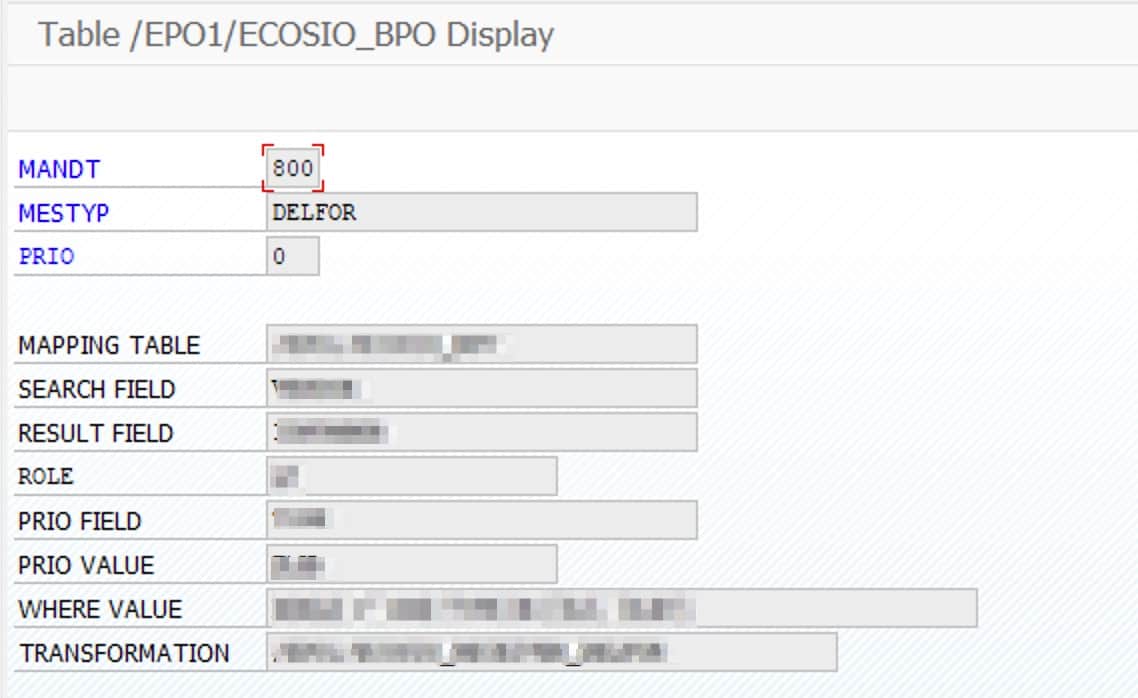
Transaction SE16: Detail view of an entry
© 2020. SAP SE or an SAP affiliate company. All rights reserved. Used with permission of SAP SE.
Then enter “/h” in the command field to start the debug mode. Click once more in the command field and press Enter to start a debug session.

© 2020. SAP SE or an SAP affiliate company. All rights reserved. Used with permission of SAP SE.
The ABAP code under the transaction then opens. Double-click on the variable “code” in the ABAP code (left arrow). Then change the value of the variable in the right-hand window to “EDIT” (for editing) or “INSR” (for inserting) and confirm with Enter.
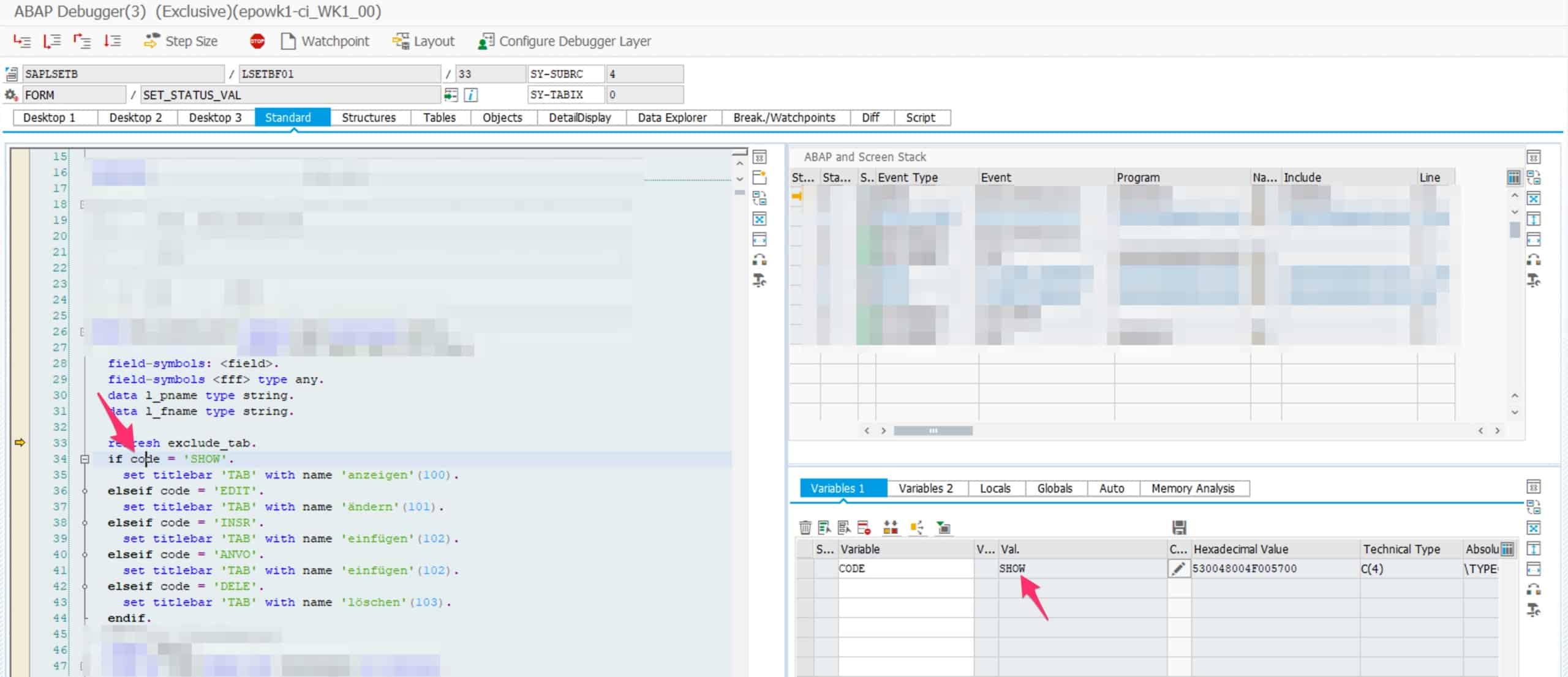
Debug mode to change a variable
© 2020. SAP SE or an SAP affiliate company. All rights reserved. Used with permission of SAP SE.
Then press F8 to finish the code. The entry can now be edited or a new entry can be added.
Option D): Using transaction SE16N with debug mode
Start transaction SE16n, enter SAP table name and press F8.

© 2020. SAP SE or an SAP affiliate company. All rights reserved. Used with permission of SAP SE.
Start the debug mode in the detail view by entering /h in the command field. Then press Enter again in the command field to start a new debug session. In the debug session, add the following two variables, set the value to “X” and finish the execution with F8.
- GD-SAPEDIT
- GD-EDIT

© 2020. SAP SE or an SAP affiliate company. All rights reserved. Used with permission of SAP SE.
The entries can now be edited or a new entry can be added.
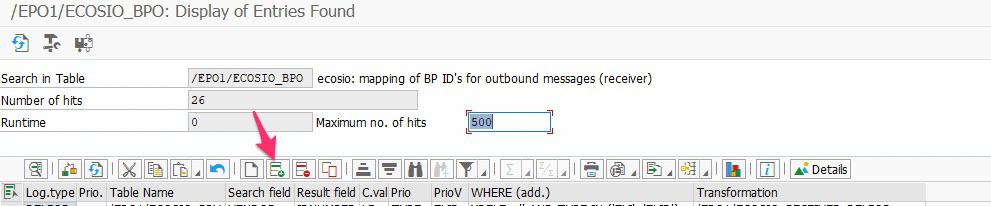
© 2020. SAP SE or an SAP affiliate company. All rights reserved. Used with permission of SAP SE.
Any questions?
We’ve got lots of helpful “how to” articles on our blog. Simply visit our blog homepage and click on the “how to guides” tab to see them all.
Do you still have questions about SAP or EDI? Get in touch with us – we are always happy to help!
SAP ERP and SAP S/4HANA are the trademarks or registered trademarks of SAP SE or its affiliates in Germany and in several other countries.
Der Beitrag How Can I Add an Entry to an SAP Table? erschien zuerst auf ecosio.
]]>